Linux For Home

Linux For The Home PC - 4683
Showing posts with label free tutorial. Show all posts

Thursday, February 13, 2014

Tutorial 3: Copy files, Hard Links and Soft Links

13. cp - cp command is used to copy the file from one location to another.

Eg. touch test1
cp test1 testdir/test2


The above set of commands will first create an empty file called test1. Then the file would be copied in another folder testdir and would be saved with name test2.


we can see the files below:


The above screen print shows the touch command creating test1 file.


The above screen shot shows the copy of test1 in testdir folder and named as test2.

Please note that cp command is different from mv. If you use mv instead of cp, a new file will not be created but rather the file would be moved from one location to another.

14. ln - ln command is used to create links to a file. Links can be of two types , soft link and hard link.
Lets create a hard link.

Eg.


In the above example we created an empty file called test1. Then we created a hard link to test1 as test2 using ln command. When we checked to contents of test1 and test2, both the files were empty. Then we added some text to test1 and verified it using cat command. Later we verified the contents of test2 using cat command. Note that the contents of test1 are also replicated in test2. Note that, test2 is not the actual file and hence will always have the size as 0 bytes as shown below.


In order to create soft links, we can use ln command with -s.

Eg. ln -s test1 test1_soft

This will create a soft link named test1_soft for test1 file. It is shown below:


Now, if the original file test1 is deleted, the contents of the hard link test2 will still remain but the soft link test1_soft will become unusable.
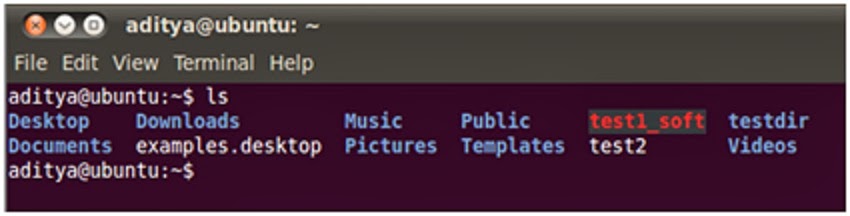


In above screenshot, test1 file is deleted however, a hard link test2 and soft link test1_soft are still present.
If you try to see the data in a hard link, it is still available.


However, when you try to see data in soft link, then  error appears.


Friday, February 7, 2014

Tutorial 1: Introduction and some basic commands


Shell scripting is one of the easiest programming languages to learn. It is very useful as you can use it to automate your tasks that otherwise would take long time to perform. In this tutorial, we will start from the easier commands and will move to more complex programs.

Shell: It is an interface between the user and the UNIX Kernel.
This means that the user gives the command to shell which in turn converts the command to a form that can be understood by Kernel.

Kernel: It is a program that manages the system resources.

How to access shell:
Shell can be accessed via a terminal. Terminal is the Unix command prompt that can be accessed from "Applications".
Note: All Unix commands are to be typed in lower case. Else, the commands would not be recognized.

Basic Commands:

1. clear - Clears the screen.

2. who am i - Displays the user name, terminal id and the date and time when the user logged in.

Eg. aditya             pts/0     2014-02-04 19:44

Here aditya is the user name. pts/0 is the terminal id and remaining portion shows the date and time.

3. pwd - It tells the user about present working directory.
Eg. /home/Aditya

4. cal - This command is used to display the calendar of current month, with current date highlighted.
cal command can be enhanced to display the calendar for past and future months.
Eg. cal 3 1983
Above command will display the calendar for March 1983.
The above command can also be used with month name instead of number.
Eg. cal mar 1983 will produce the same result as the previous one.

5. date - This command tells us the day, month, date, year and the time.


This command can also be customized to show the date as per our preference.
Eg. date '+DATE:%m-%y%nTIME:%H:%M:%S'


The above result set shows the month and the year. Then, on the next line it shows time i.e hrs, mins and sec.
Let us examine the extension of the command that we used to customize the actual command.
The extension is enclosed in single quotes.
+ denotes that we are adding an extension to the command.
DATE: is the text to denote the date.
%m denotes month.
- is used as separator.
%y denotes year.
%n denotes new line.
TIME: is the text to denote time.
%H denotes hrs.
: is a separator.
%M denotes mins.
%S denotes seconds.

In next tutorial we will come up with some more interesting commands.